
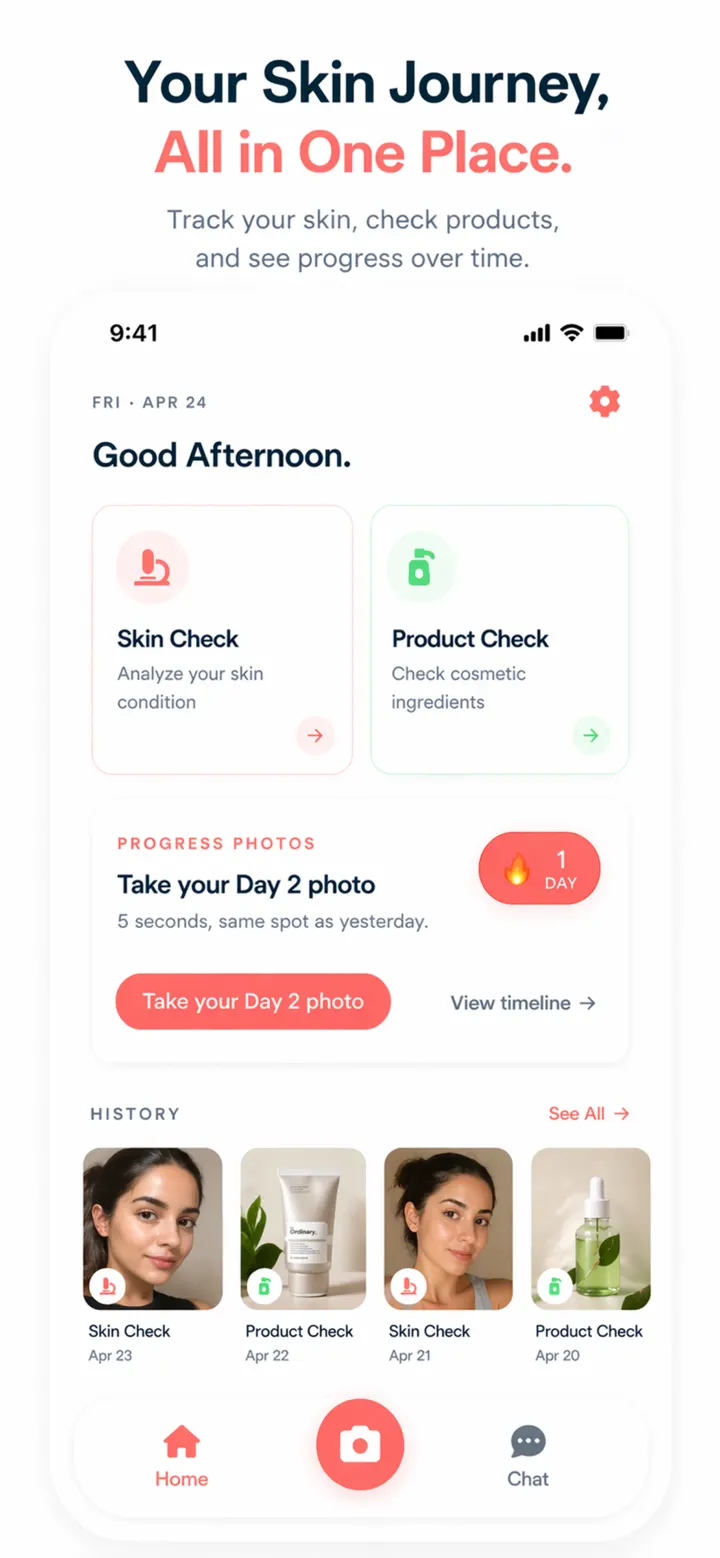
1. Choose what you want to do
Use skin analysis to review visible features in a skin photo. Use product scanning to understand a cosmetic ingredient list. Open the assistant for general or result-based questions, and use progress photos to build a dated record.
Each feature works on its own, and supported results connect to other tools. For example, you can open the AI assistant after completing a skin or product analysis.
- Skin analysis: review visible features in a photo.
- Product scanner: read and explain an ingredient list.
- AI assistant: ask skincare and product questions.
- Progress tracker: save dated photos and compare them.
2. Take a photo or choose one from your gallery
For skin, use a focused, unfiltered image in even light. For a product, capture the entire ingredient list and verify that small text is legible. In chat, state a focused question and only the context needed to understand it.
The app cannot restore information that was never captured. Glare, blur, cropped words, colored light and vague questions all reduce the usefulness of the result.
3. Add the required details and start the analysis
For a skin analysis, choose your skin type, phototype and the body area shown in the photo. You can save these choices for future analyses. Review the information on screen, then submit the image.
For a cosmetic-product scan, verify that the ingredient label is complete and readable in the preview. Retake a cropped, blurred, or reflective image before analysis starts.
- Do not treat a result as a diagnosis.
- Do not treat an ingredient flag as proof of whole-product safety.
- Do not start or stop prescribed care because of an app response.
- Do not delay help for worsening or urgent symptoms.
4. Review results, history, and follow-up chat
Read the complete result with its explanations and warnings. From supported results, open the AI assistant to ask follow-up questions about the scan.
Saved skin and product analyses remain available in history. You can reopen earlier results, filter skin scans by skin type or phototype, and delete records you no longer want.
5. Add and compare guided progress photos
Open progress tracking and save your first photo. For later photos, use face-position guidance and the previous-photo overlay to capture a similar pose. Select two dates from the timeline to compare the images side by side.
DermaScanAI helps you organize photos and results, but it does not provide a medical diagnosis. Seek professional care for a concerning or worsening skin change.
Questions
Frequently asked questions
Do I need to use every DermaScanAI feature?
No. Choose only the tool that matches your goal. You can analyze one photo, scan a label, ask a question or build a progress timeline independently.
What information should I check before acting on a result?
Check the original image or package, the quality of the input, product directions and any relevant professional advice. Important health decisions should be verified with a qualified clinician.
Does saving several scans make the app diagnostic?
No. A history can add visual context, but neither one image nor a series of images replaces medical examination and appropriate testing.